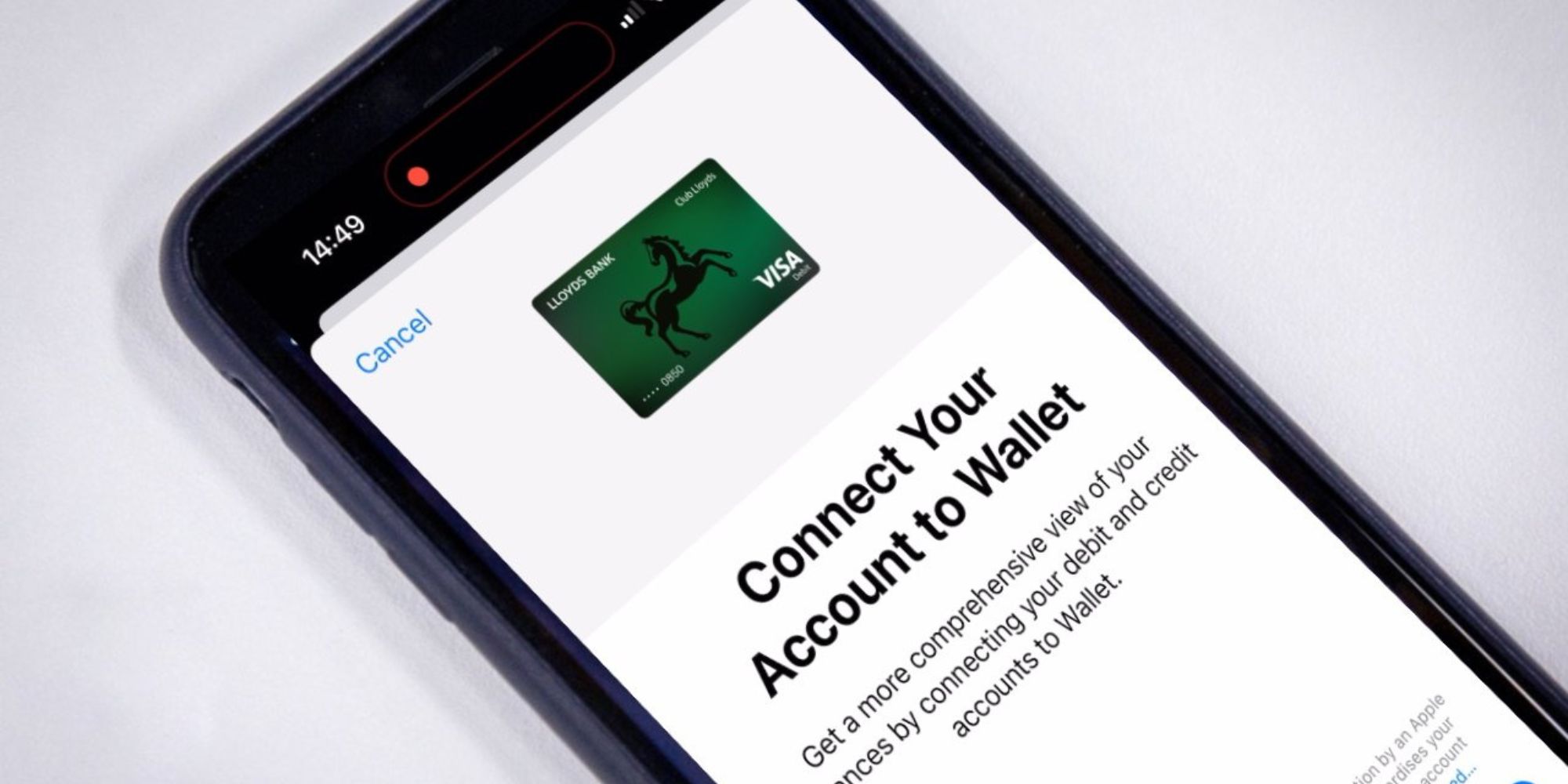
To add a bank account to Apple Wallet, tap your Apple Card in the Wallet app, go to Account Details, then Bank Accounts, and select Add Bank Account. Availability may vary by country or region and by your bank or financial institution. Enter your account and routing numbers, confirm them, and follow the prompts to verify.
Step 1: Update your Device
Before you begin adding a bank account to your Apple Wallet, it is crucial to ensure that your device is running on the latest software version. Keeping your device up to date not only ensures you have access to the latest features but also guarantees the highest level of security.
To update your device, follow these simple steps:
- Connect your device to a stable Wi-Fi network.
- Go to the "Settings" app on your device and tap on "General".
- Scroll down and select "Software Update".
- If an update is available, tap on "Download and Install".
- Follow the on-screen instructions to complete the update process.
Once your device is successfully updated, you can proceed to the next step of adding a bank account to your Apple Wallet.
Updating your device regularly not only ensures that you have access to the latest features and security enhancements offered by Apple but also helps to eliminate any potential bugs or issues that may prevent you from adding a bank account successfully. By taking a few minutes to update your device, you can ensure a smooth and hassle-free process when adding your bank account to Apple Wallet.
Step 2: Open the Wallet App
Once your device is up to date, locate and open the Wallet app, a pre-installed application on your iPhone, iPad, or iPod touch. The app icon resembles a wallet with several payment cards inside.
- Tap the Wallet app to open it.
Upon opening the Wallet app, you will see any existing cards or payment methods you have already added.
Note: In some cases, the Wallet app may be named "Passbook" depending on your device and software version.
Step 3: Add a Bank Account
Now that you have opened the Wallet app, it's time to add your bank account. Adding a bank account allows you to link your account information to your Apple Wallet so that you can easily make payments and manage your finances.
To add a bank account, follow these steps:
- Tap your Apple Card in the Wallet app, go to Account Details, then Bank Accounts, and select Add Bank Account or Add Another Bank Account.
- On the screen, you will see fields to enter the required information. This will include your account number and the routing number.
- Enter your routing and account numbers, tap Next, enter them again to confirm, and tap Save.
- Follow the prompts provided by Apple to complete the verification process.
- Review your payment settings to ensure your bank account is selected for transactions.
At this stage, you may be prompted to enter your Apple ID login details or verify your identity through Touch ID or Face ID, depending on your device's capabilities. This is done to ensure the security of your account and prevent unauthorized access.
Adding a bank account to your Apple Wallet allows for convenient and secure transactions. It eliminates the need to carry physical cards and gives you quick access to your funds whenever and wherever you need them.
Step 4: Enter Account Information
After selecting the option to add a bank account in the Wallet app, you will be prompted to enter your account information. This includes the necessary details to link your bank account securely to your Apple Wallet.
Follow these steps to enter your account information:
- On the "Add Card" screen, you will see fields to enter the required information. This will include your account number and the routing number.
- Enter your account number, which can typically be found on your bank statements or by logging into your online banking portal.
- Provide the routing number for your bank. This is a nine-digit number that identifies the financial institution associated with your bank account.
Double-check the information you have entered to ensure accuracy, as any errors may result in a failed connection or complications when using your bank account for transactions.
Once you have finished entering your account information, tap on the "Next" or "Continue" button to proceed to the next step. Follow the prompts provided by Apple to complete the verification process.
It's important to note that the specific information required may vary based on your bank and region. Some banks may also require additional verification steps, such as a one-time password or an authorization code sent to your registered mobile number or email address.
By providing the necessary account information, you are allowing your Apple device to securely link your bank account to your Apple Wallet.
Step 5: Verify Your Account
After entering your bank account information in the Wallet app, the next step is to verify your account. Verification is an essential security measure to confirm that you are the legitimate account holder and that your bank account can be safely linked to your Apple Wallet.
Follow these steps to verify your account:
- Follow the prompts provided by Apple to complete the verification process.
- You will be asked to enter your routing and account numbers, tap Next, enter them again to confirm, and tap Save.
- Locate your bank account within the app. Review your payment settings to ensure your bank account is selected for transactions.
Ensure that you carefully follow Apple's instructions and provide the required information accurately to successfully verify your account. Take your time and be patient during this process, as it is a crucial step in ensuring the security of your financial information.
Once you have completed the verification process, your bank account will be successfully linked to your Apple Wallet. You will then be able to use your bank account for various transactions, such as making online purchases, paying for goods and services at stores that accept Apple Pay, and sending or receiving money using Apple's peer-to-peer payment feature.
Keep in mind that verification methods may differ between banks, so the exact steps you need to follow may vary. If you encounter any difficulties during the verification process, it's recommended to contact your bank's customer support for assistance.
By successfully verifying your account, you can enjoy the convenience and security of using your bank account through your Apple Wallet.
Step 6: Set as Default Payment Method
Once you have added and verified your bank account in the Wallet app, it's time to set it as your default payment method. Setting your bank account as the default payment method ensures that it is automatically used for transactions.
To set your bank account as the default payment method, follow these steps:
- Open the Wallet app on your device.
- Locate your bank account within the app.
- Review your payment settings to ensure your bank account is selected for transactions.
By setting your bank account as the default payment method, any transactions you make using your Apple Wallet will be automatically charged to your bank account. This eliminates the need to manually select your bank account for each transaction.
If you have multiple payment cards or methods added to your Apple Wallet, it's important to periodically review and ensure that your desired default payment method is selected. This can be especially useful if you have different cards for personal and business use.
It's also worth noting that you can change your default payment method at any time. Simply follow the same steps outlined above and select the desired card or payment method as your default.
With your bank account set as the default payment method, you can confidently use your Apple Wallet for quick and hassle-free transactions.
Conclusion
Adding a bank account to your Apple Wallet is a simple way to manage your finances.
Using your bank account through your Apple Wallet offers convenience and security. You can make online purchases, pay at Apple Pay-enabled stores, and send or receive money through Apple's peer-to-peer payment feature with a few taps.
Remember to keep your device updated, review your payment method if necessary, and contact your bank's customer support if you encounter difficulties.
With your bank account added, you can enjoy managing your finances digitally, making everyday transactions smoother.
Related travel guides: How To Add DVC Card To Apple Wallet, How To Add Klarna Card To Apple Wallet, and How To Add Target Card To Apple Wallet.