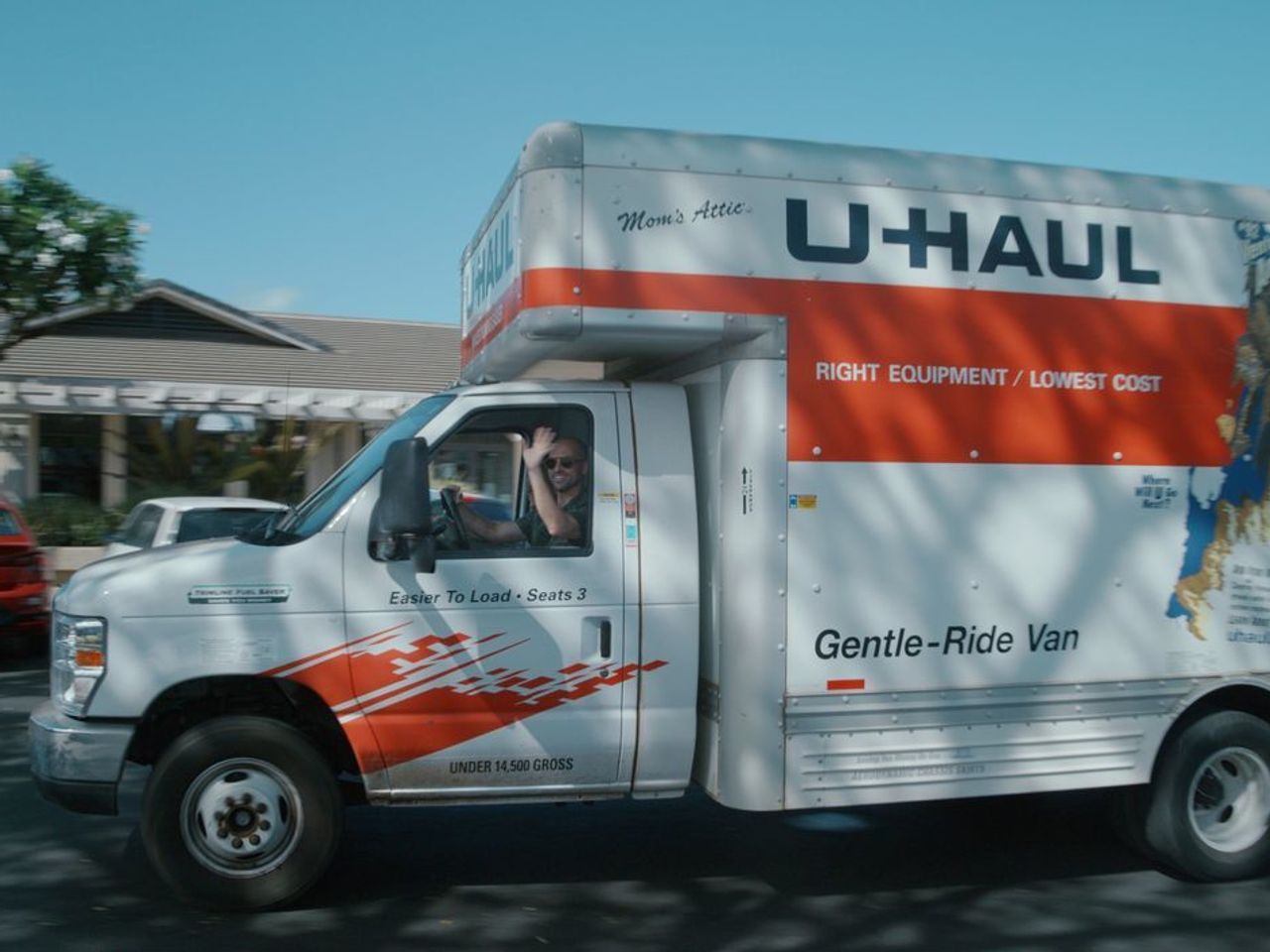
To add a driver to your U-Haul reservation, log in to your account, find the reservation, and click the "Add a Driver" option. The driver you add must meet U-Haul's requirements, and you will need to provide their full name, date of birth, and driver's license number. U-Haul may request additional identity verification, and the driver will be listed on the rental contract at pickup.
Step 1: Accessing your U-Haul reservation
The first step to adding a driver to your U-Haul reservation is to access your reservation. This can typically be done online through the U-Haul official website or mobile app. Follow these simple steps to access your reservation:
Related travel guides: What Is The Sxt Package On A Dodge Grand Caravan, What Is The Difference In Dodge Grand Caravan: Express, SE, And SXT, and What You Should Know About Renting A Car In Mexico As An American.
- Login to your U-Haul account: Visit the U-Haul website or open the U-Haul mobile app and login to your account using your username and password. If you don't have an account, you can create one by providing the required details.
- Go to your reservations: Once you are logged in, navigate to the "Reservations" section. This is usually located in the main menu or dashboard of your account.
- Select the reservation: Find the reservation for which you want to add a driver and click on it to access the details.
- Find the "Add a Driver" option: Look for the "Add a Driver" or similar option within the reservation details, if available. This is usually located somewhere on the reservation page, either as a button or a link.
By following these steps, you should be able to access your U-Haul reservation and locate the option to add a driver. Now, let's move on to the next step: selecting the "Add a Driver" option.
Step 2: Selecting the "Add a Driver" option
Once you have accessed your U-Haul reservation, the next step is to select the "Add a Driver" option. This option allows you to specify the additional driver you want to add to your reservation. Follow these steps to select the "Add a Driver" option:
- Locate the "Add a Driver" option: On the reservation page, you will find the "Add a Driver" option. It is usually clearly labeled and easily visible. Click on this option to proceed.
- Review driver requirements: Before adding a driver, it's important to familiarize yourself with the driver requirements set by U-Haul. These requirements may include minimum age, valid driver's license, and other criteria. Ensure that the driver you plan to add meets these requirements.
- Click on "Add a Driver": Once you have reviewed the driver requirements, click on the "Add a Driver" button or link. This will take you to a page where you can provide the necessary information about the driver.
By following these steps, you will successfully navigate to the "Add a Driver" section of your reservation. Now, let's proceed to the next step: providing the driver's information.
Step 3: Providing driver's information
After selecting the "Add a Driver" option in your U-Haul reservation, it's time to provide the necessary information about the driver you wish to add. This information helps U-Haul ensure that the added driver meets the required qualifications. Follow these steps to provide the driver's information:
- Enter driver's details: When adding a driver, you will need to provide their information. This typically includes their full name, date of birth, and driver's license number. Fill in all the required fields accurately and completely.
- Verify driver's identity: In some cases, U-Haul may require additional verification of the driver's identity for security purposes. This can be done by presenting a valid identification document, such as a driver's license or passport. Follow the instructions provided to complete the identity verification process if prompted.
- Provide contact information: U-Haul may also ask for the contact information of the added driver. This ensures that they can communicate with the driver if needed. Enter the driver's phone number and email address in the provided fields.
- Review and confirm: Before submitting the driver's information, take a moment to review all the details you have entered. Make sure that everything is accurate and up-to-date. If any changes are needed, correct them before moving forward.
By following these steps, you will provide the necessary information about the driver you wish to add to your U-Haul reservation. U-Haul will confirm the driver addition by listing them on the rental contract. Now, let's move on to the next step: verifying and submitting the driver's details.
Step 4: Verifying and submitting the driver's details
After providing the driver's information in your U-Haul reservation, the next step is to verify and submit the details. This verification process ensures that the driver meets the necessary requirements and that the information provided is accurate. Follow these steps to verify and submit the driver's details:
- Review the driver's information: Take a moment to carefully review all the driver's information you have entered. Check for any errors or typos and make sure everything is accurate.
- Check for any additional requirements: Depending on your location or specific circumstances, there may be additional requirements or conditions that need to be met. Read any additional instructions or information provided on the page to confirm your compliance.
- Submit the driver's details: Once you have verified that all the information is correct and have met any additional requirements, click on the "Submit" or "Save" button to save and submit the driver's details.
- Wait for confirmation: After submitting the driver's details, the system will process the information. You may need to wait for a few moments to receive confirmation that the driver has been successfully added to your U-Haul reservation.
By following these steps, you will verify and submit the driver's details, ensuring that the necessary qualifications are met and the information provided is accurate. Now, let's move on to the final step: receiving confirmation of the driver addition.
Step 5: Confirmation of driver addition
Once you have submitted the driver's details in your U-Haul reservation, you will receive confirmation of the driver addition. This confirmation ensures that the added driver is officially authorized to operate the vehicle during your rental period. Follow these steps to receive confirmation of the driver addition:
- Review the contract at pickup to verify the driver is included.
- Review the confirmation details: Carefully review the rental contract to ensure that the driver's information is accurately reflected and that there are no discrepancies.
- Contact U-Haul if needed: If you notice any issues or discrepancies in the confirmation details, or if you have any questions or concerns, don't hesitate to contact U-Haul customer support. They will be able to assist you and provide clarification or resolution if necessary.
- Save the contract for reference: It's a good practice to keep a copy of the rental contract for future reference. This way, you can easily access the confirmation details if needed during your rental period.
By following these steps, you will receive confirmation of the driver addition to your U-Haul reservation. This confirmation provides you with peace of mind knowing that the added driver is officially authorized to operate the vehicle. Now that you have successfully added a driver to your U-Haul reservation, you can enjoy the convenience of having additional help during your move.
Adding a driver to your U-Haul reservation is a straightforward process that allows you to share the driving responsibilities and make your move more efficient. By following the steps outlined in this guide, you can easily add a driver to your U-Haul reservation and ensure a smooth and hassle-free experience. Happy moving!
Conclusion
Adding a driver to your U-Haul reservation is a practical solution that provides flexibility and convenience during your move. By following the steps outlined in this guide, you can add an additional driver and ensure a smoother moving experience.
First, access your U-Haul reservation by logging into your account and navigating to the "Reservations" section. Then, look for the "Add a Driver" option within the reservation details, if available. When adding a driver, you will need to provide their information, including their full name, date of birth, and driver's license number. Verify the driver's details and submit the information for processing.
Review the contract details and save a copy for future reference if needed. If you encounter any issues or have questions, don't hesitate to reach out to U-Haul customer support for assistance.
Adding a driver allows you to share driving responsibilities, especially during long-distance moves or when you need extra assistance. In some cases, U-Haul may require additional verification of the driver's identity for security purposes, which can be done by presenting a valid identification document, such as a driver's license, at pickup.
Remember to always comply with U-Haul's driver requirements and any additional conditions that may apply. By properly adding a driver, you can ensure a safe and successful move.